HTML (Cambridge International IGCSE ICT)
What is HTML?
- Hypertext Markup Language (HTML), is the foundational language used to structure content on the web
- HTML consists of a series of elements, often referred to as "tags," which can be used to structure and format a webpage
- The
<html>tag is the root element of an HTML page - The tag includes all other HTML elements used on the page
- Most tags are opened and closed e.g.
<html>and</html>whereas some tags are only opened e.g.<img>and<link> - The content layer of a web page is made up of HTML elements such as headings (
<h1>, <h2>, etc.), paragraphs (<p>), links (<a>), images (<img>), and more
Head
What is the head section of a webpage?
-
The head section contains information about the web page that's not displayed on the page itself
- It's enclosed by
<head>and</head>tags - The content inside the head tag is displayed in the browser tab
- It's enclosed by
Page title
- The
<title>element is used to set the page title that displays in the browser tab - It is placed inside the
<head>section of the HTML document
External stylesheets
- External stylesheets are linked in the
<head>section using the<link>element - The
relattribute is set to "stylesheet", and thehrefattribute contains the relative file path to the CSS file - Stylesheets are loaded in the order they are listed, so hierarchy is important
Adding a page title and link to an external stylesheet in HTML
Metatags
-
Metatags are snippets of text in HTML that describe a page's content
-
They don't appear on the page itself but in the page's code
-
Search engines, browsers and other web services use metatags to glean information about a web page
-
Metatags provide additional information about the web page to the browser and search engines
-
Examples of metatags include:
-
Charset
- The
<meta charset="UTF-8">tag specifies the character encoding for the HTML document - UTF-8 is the most common character encoding and includes almost all characters from all writing systems
- The
-
Keywords
- The
keywordsattribute in a<meta>tag is a comma-separated list of words that represent the content of the web page - It was originally intended to help search engines understand the content of a page, but it's less relevant today as search engines have become more sophisticated
- The
-
Author
- The
authorattribute in a<meta>the tag identifies the author of the web page - It can be helpful for copyright purposes and for readers who want to know the source of the content
- The
-
Description
- The
descriptionattribute in a<meta>tag provides a concise explanation of the content of the web page - This description often appears in search engine results and can influence click-through rates
- The
-
Adding basic metatags in HTML
-
Viewport
- The
<meta name="viewport" content="width=device-width, initial-scale=1">tag makes your web page display correctly on all devices (desktop, tablet, mobile) - It controls the viewport siz e and the initial zoom level
- The
Adding a viewpoint metatag in HTML
Default target windows
- The
targetattribute of the<base>element can set a default target window for all links on a page - For example,
<base target="_blank">will open all links in a new window or tab
Adding the base target metatag in HTML
Body
What is the body section of a webpage?
-
The body section contains the main content of the web page, such as text, images, videos, hyperlinks, tables etc.
- It's enclosed by
<body>and</body>tags - The content inside the body tag is displayed in the browser window
- It's enclosed by
-
Text entry (headings & paragraphs)
Adding text to the body of a HTML page
- Inserting an image
Adding an image in HTML
Tables in webpages
- In the early days of web development, tables were used to create complex page layouts
- They provide a way to arrange data into rows and columns
- By utilising cell padding, cell spacing, and borders, developers could **manipulate the appearance **of the page
- Today, tables are primarily used for** displaying tabular data** - information that is logically displayed in grid format
- For example, financial data, timetables, comparison charts and statistical data are often presented in tables
- Tables make it easy for users to scan, analyse and comprehend the data
- Tables also enhance accessibility
- Screen readers for visually impaired users can read tables effectively if they are correctly structured
- HTML elements like
<table>,<tr>,<th>, and<td>help in conveying the structure and purpose of the data to these assistive technologies
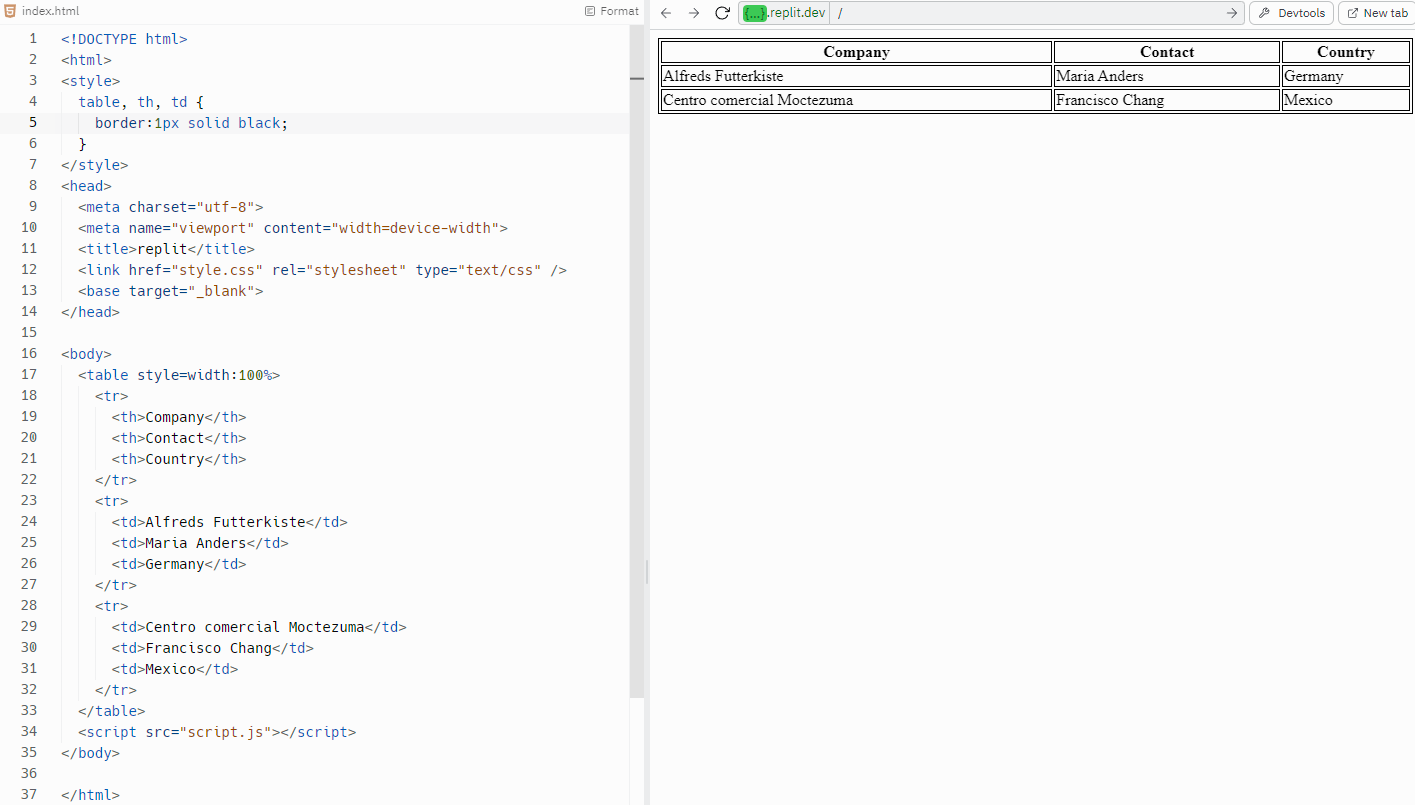
Creating a table using HTML
Bookmarks & Hyperlinks
What is a bookmark?
- A bookmark in HTML is a way to provide links to specific sections of a web page
- It allows users to navigate easily to different sections of content without having to scroll through the entire page
- Bookmarks are created using the
idattribute in HTML - Example:
<div id="section1">This is Section 1</div> - Any tag can be turned into a bookmark by adding an
idattribute to it - The
idshould be unique and not used more than once on a page - To link to the bookmark, use the
<a>tag with ahrefvalue set to#followed by theidof the bookmark - By combining the
<a>tag and thehrefattribute with a specificid, you can create a link that takes the user to that bookmarked section of the page
What is a hyperlink?
-
A hyperlink, often just called a 'link', is a reference to data that a reader can directly follow by clicking or tapping
-
It is one of the core elements of the World Wide Web, as it enables navigation from one web page or section to another
-
Hyperlinks are created using the
<a>(anchor) tag in HTML -
They can link to different sections of the same page, other locally stored web pages, or external websites
- Text hyperlinks: Usually, a portion of text that is highlighted in some way, like being underlined or a different colour
- Image hyperlinks: An image that you can click on to take you to another page or another part of the same page
- Button hyperlinks: A clickable button that redirects the user to another page or section
-
Hyperlinks utilise the '
href' attribute within the<a>tag in HTML -
The '
href' attribute contains the URL of the page to which the link leads -
The text between the opening
<a>and closing</a>tags are the part that will appear as a link on the page
Hyperlink types
-
Same-page bookmark: Use the
#followed by theidof the element you want to jump to- Example:
<a href="#section1">Go to Section 1</a>
- Example:
-
Locally stored web page: Use the relative path to the file
- Example:
<a href="contact.html">Contact Us</a>
- Example:
-
External website: Use the full URL
- Example:
<a href="https://www.google.com">Google</a>
- Example:
-
Email link: Use
mailto:followed by the email address- Example:
<a href="mailto:example@example.com">Email Us</a>
- Example:
-
Specified location: Use the
targetattribute to specify where to open the link-
_blankfor a new tab or window -
_selffor the same tab or window, or a named window- Example:
<a href="https://www.google.com" target="_blank">Google</a>
- Example:
-
Example body section containing bookmarks and hyperlinks
File Paths
What is a relative file path?
- A relative file path specifies the location of a file or directory about the current location, or the location of the file that references it
- For instance, if an HTML file and an image are in the same directory, you can reference the image in the HTML file using just its name (e.g.,
image.jpg)
What is an absolute file path?
- An absolute file path specifies the exact location of a file or directory, regardless of the current location
- It includes the entire path from the root directory to the file or directory in question
- For instance, an absolute file path on a Windows system might look like
C:\Users\Username\Documents\image.jpg
Reasons not to use absolute file paths for local objects
- Using absolute file paths for local web pages or objects can lead to broken links when the website is moved to a different directory or server
- The web page or object might not exist at the specified location on the server or the user's computer
- If a website is moved or backed up, absolute links will still point to the original location, not the new or backup location
Was this revision note helpful?
Build on this topic